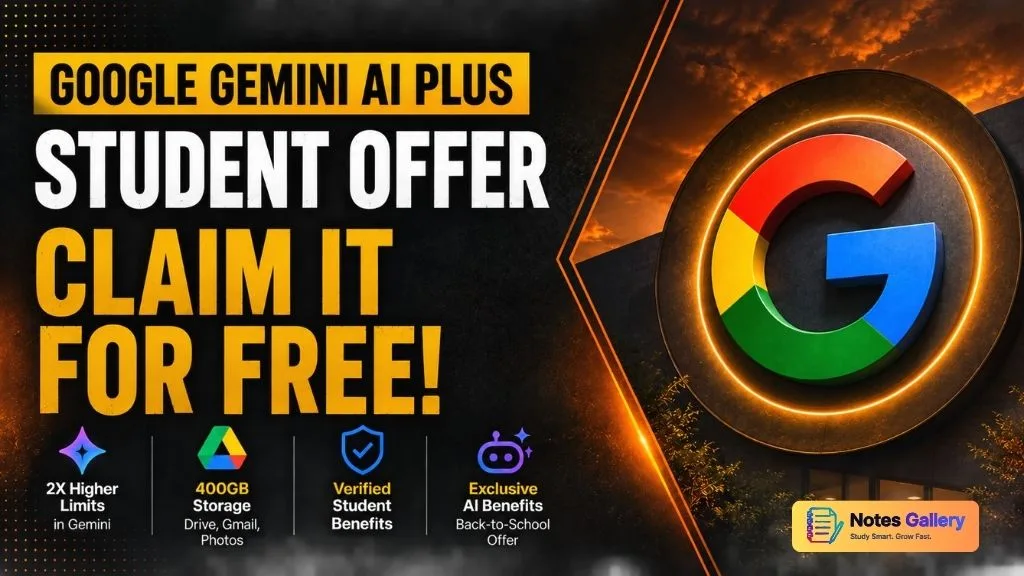
Google has launched a new Back-to-School student offer that gives eligible students access to the Google AI Plus student plan at no cost for the promotional period.
The offer includes higher limits in Gemini, additional Google storage, and other AI-related benefits. If you are a college or university student, this offer can be useful for studying, research, coding, writing, and other academic work.
I recently redeemed the student offer myself. Since many students are facing difficulties during the verification and payment setup process, here is a complete step-by-step guide.
What Do You Get With the Google AI Plus Student Offer?
Eligible students can get several benefits through the offer, including:
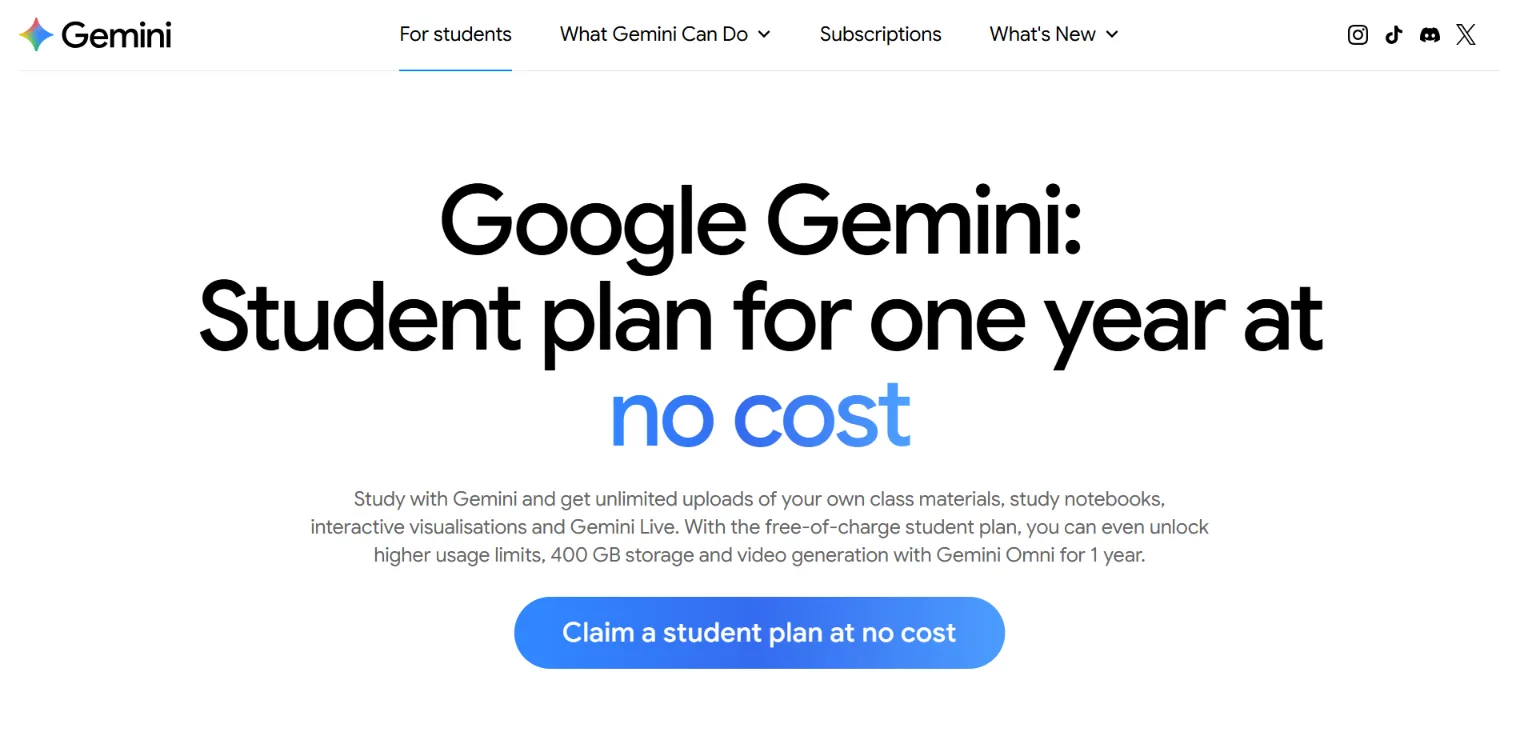
- 2X higher limits in Gemini
- 400 GB of total Google storage
- Storage that can be used across Google Photos, Google Drive, and Gmail
- Access to additional Google AI features
- Student-specific benefits included with the Google AI Plus plan
The exact benefits and eligibility requirements can vary, so check the offer page before completing the redemption.
How to Claim the Google Gemini Student Offer
Follow these steps to redeem the offer.
Step 1: Open the Student Offer Page
Open your browser and visit:
You can also access the offer through Google’s official student promotion page.
After opening the page, you should see an option such as:
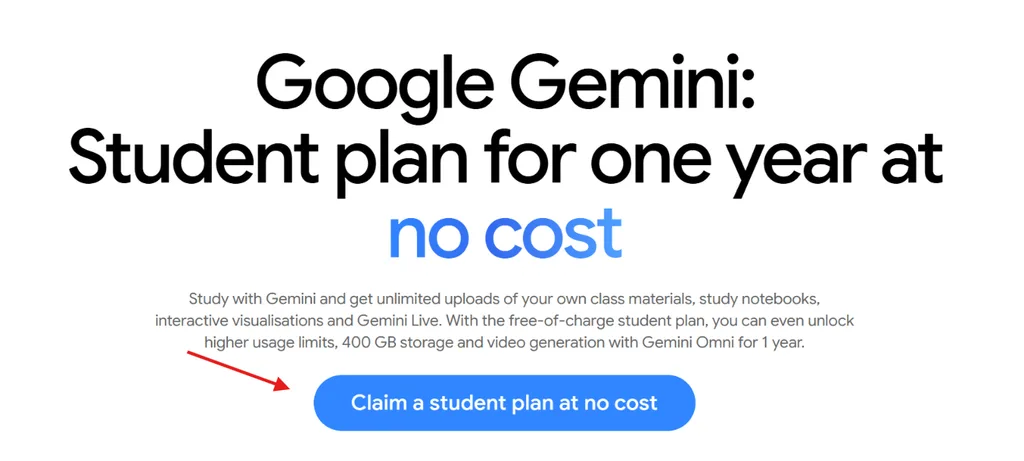
“Claim Student Offer at no cost”
Click on it to continue.
Step 2: Select the Google AI Plus Student Offer
You will be taken to the Google AI Plus plan page.
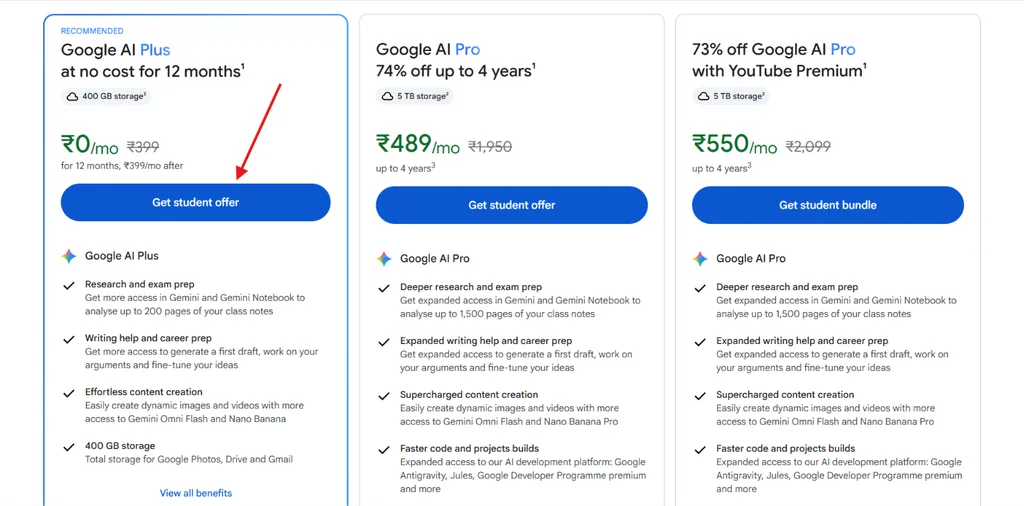
Look for the “Get Student Offer” option and click on it.
Google will then ask you to verify your student status.
Step 3: Verify Your Student Status
Google uses SheerID to verify whether you are an eligible student.
Click “Continue” to begin the verification process.
Before starting, make sure you are signed in to the Google account you want to use for the offer.
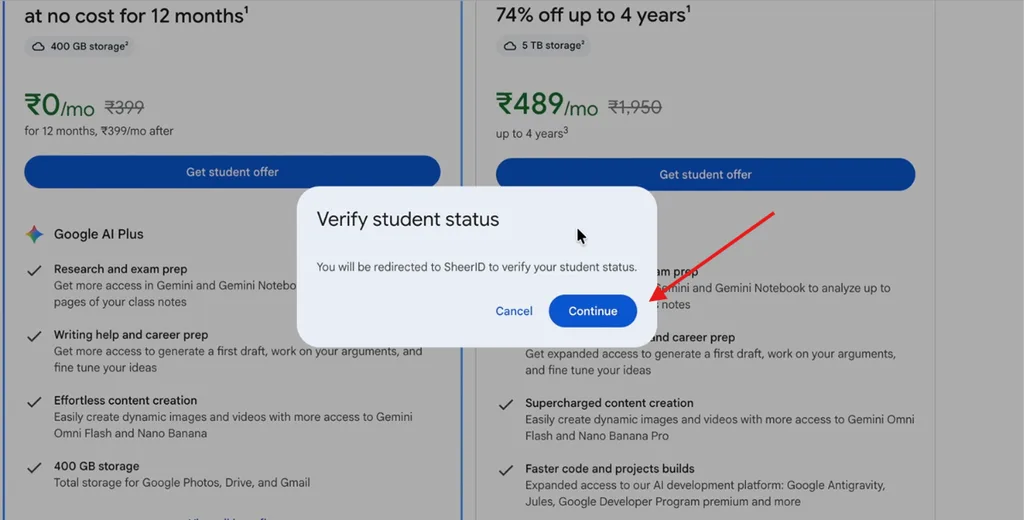
If your institution provides a student email address, such as an address ending in .edu or .edu.in, keep that account signed in.
If you do not have an institutional email address, SheerID may provide alternative verification methods depending on your institution and eligibility.
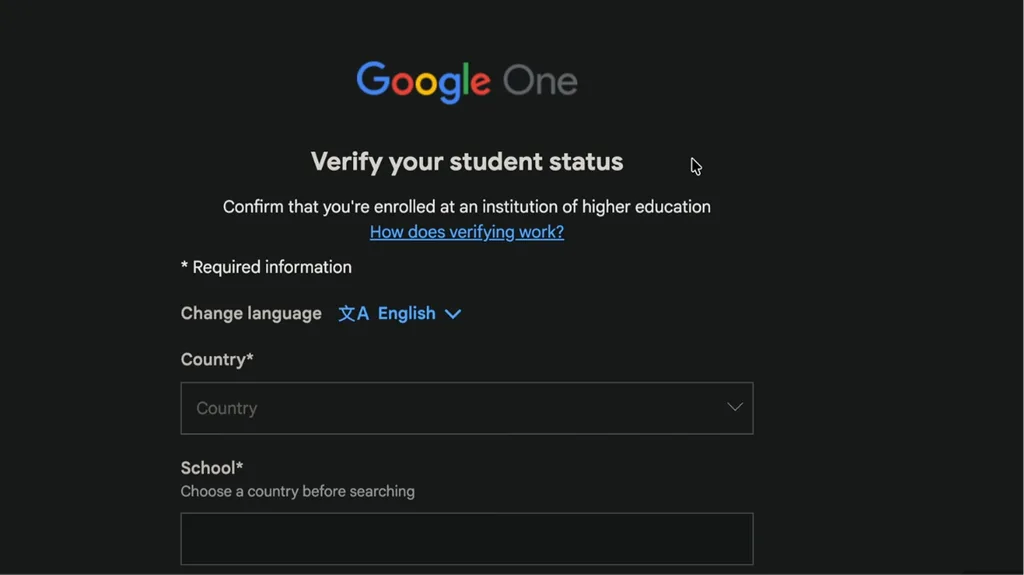
Step 4: Enter Your Student Information
The verification page may ask you to provide information such as:
- Country
- College or university
- First name
- Last name
- Date of birth
- Personal email address
Enter the information exactly as it appears in your student records.
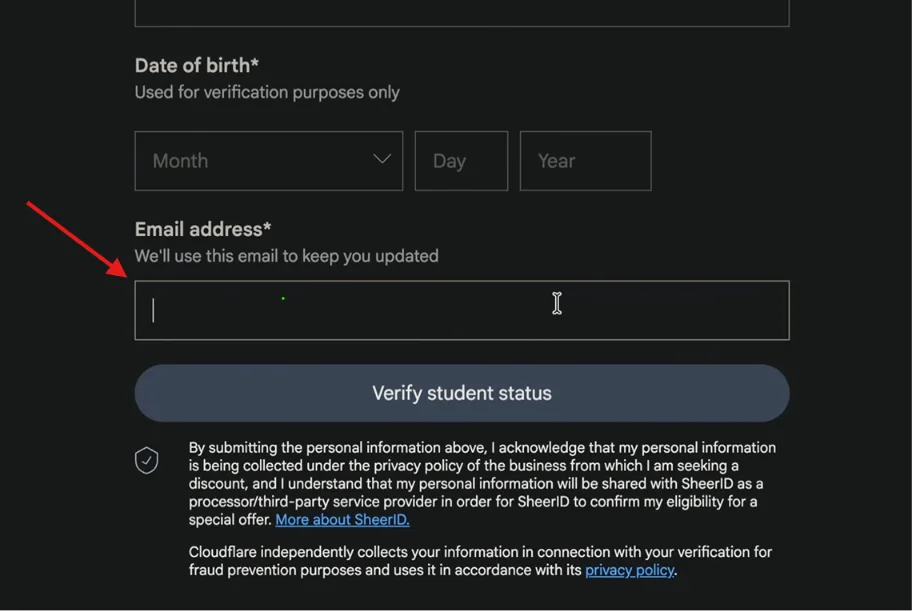
NOTE : ENTER YOUR EMAIL WHERE YOU WANT TO CLAIM THIS OFFER
For example, select India as your country if you are studying in India. Then search for and select your college or university.
Once you have entered the required information, click “Verify Student Status.”
Step 5: Complete SheerID Verification
If your institutional account is already signed in, SheerID may automatically detect it.
You may receive a request asking you to allow the verification process to access your student account.
Follow the instructions on the screen and provide the required permission.
If your student status is successfully verified, you will be redirected to the Google student offer page.
Step 6: Choose a Payment Method
After your student status has been verified, Google may ask you to add a payment method before activating the offer.
This can include options such as UPI or other supported payment methods.
In my case, I used UPI.
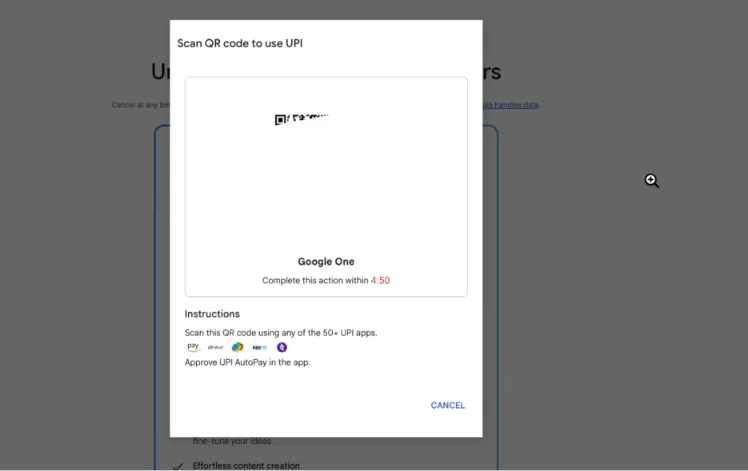
The reason UPI can be convenient is that it supports AutoPay, which can be managed or cancelled through your payment provider.
Step 7: Set Up UPI AutoPay
Select UPI and follow the instructions shown on the screen.
You may receive a QR code that you can scan using your preferred UPI app.
Complete the payment authorization process.
Google may make a small temporary verification charge, such as ₹2. This type of verification charge is generally reversed after verification, according to the offer flow.
Always check the amount shown on your own screen before approving a transaction.
Step 8: Finish the Activation
Once the payment method has been successfully added, your Google AI Plus student offer should be activated if you meet all eligibility requirements.
Click “Done” to finish the process.
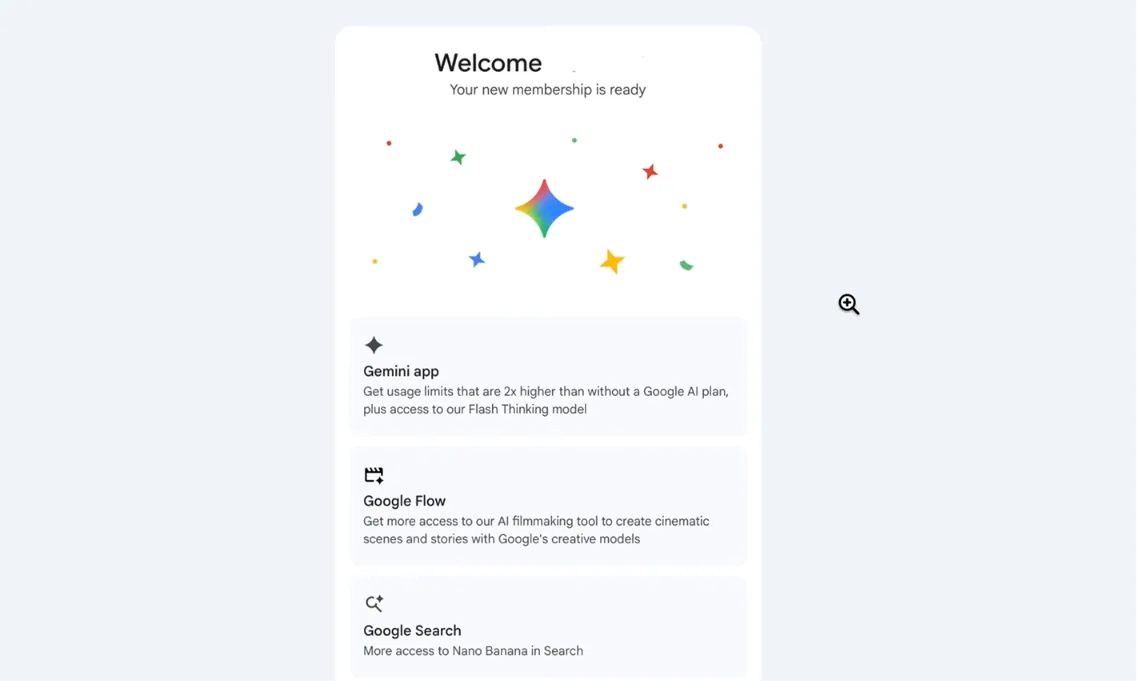
You can then start using the benefits included with the student plan.
What If SheerID Cannot Verify You?
Some students may not get instant verification.
If this happens, check the following:
- Make sure your name matches your student records.
- Select the correct college or university.
- Check that your date of birth is correct.
- Use the correct institutional email if available.
- Make sure you are using the Google account where you want the offer activated.
- Follow any additional document verification instructions provided by SheerID.
If your institution does not appear in the verification system, check whether Google or SheerID provides another verification option.
Can You Cancel the Subscription Later?
If the student offer requires a payment method or AutoPay, check your Google subscription settings after activation.
If you do not want the subscription to continue after the promotional period, cancel it before the offer period ends.
Do not rely only on the fact that the current plan is free. Check the subscription terms and renewal date shown in your Google account.
Why This Offer Can Be Useful for Students
Students can use Gemini and other Google AI features for tasks such as:
- Understanding difficult concepts
- Summarizing study material
- Generating practice questions
- Improving writing
- Learning programming
- Debugging code
- Research assistance
- Brainstorming project ideas
- Preparing presentations
- Organizing study notes
The additional Google storage can also be useful if you regularly use Google Drive, Gmail, and Google Photos.
Important Things to Check Before Redeeming
Before you claim the offer, make sure you read the eligibility and promotion terms.
Also check:
- Whether your college or university is eligible.
- Whether the offer is available in your country.
- The promotional period.
- Which Google account will receive the benefit.
- Whether a payment method is required.
- When the subscription will renew or change to a paid plan.
- How to cancel the subscription if you do not want future charges.
also read : https://notesgallery.com/deloitte-recruitment-2026-2/
Final Steps
The overall process is simple:
- Open
goo.gle/studentdeal. - Select “Claim Student Offer at no cost.”
- Choose “Get Student Offer.”
- Start student verification through SheerID.
- Enter your college and personal details.
- Complete student verification.
- Add a supported payment method if required.
- Complete the UPI or payment authorization.
- Finish activation.
- Check your Google account to confirm that the student plan is active.
If you are an eligible student, this Google AI Plus student offer can give you access to additional Gemini limits, Google storage, and other benefits without paying the regular plan price during the promotional period.
Before signing up, always verify the current terms directly on Google’s student offer page because eligibility, pricing, benefits, and promotional dates can change.