Students looking for their marksheets, degrees, diplomas, or other academic records can access them digitally through DigiLocker when the concerned university, board, or educational institution has made the documents available through the National Academic Depository (NAD).
The official NAD-DigiLocker instructions provided in the attached document explain how students can find, view, download, verify, and share their academic records using both the DigiLocker website and mobile app.
If you need your marksheet or degree for admission, employment, higher studies, or document verification, this guide explains the complete process in simple steps.
Official NAD-DigiLocker Notice
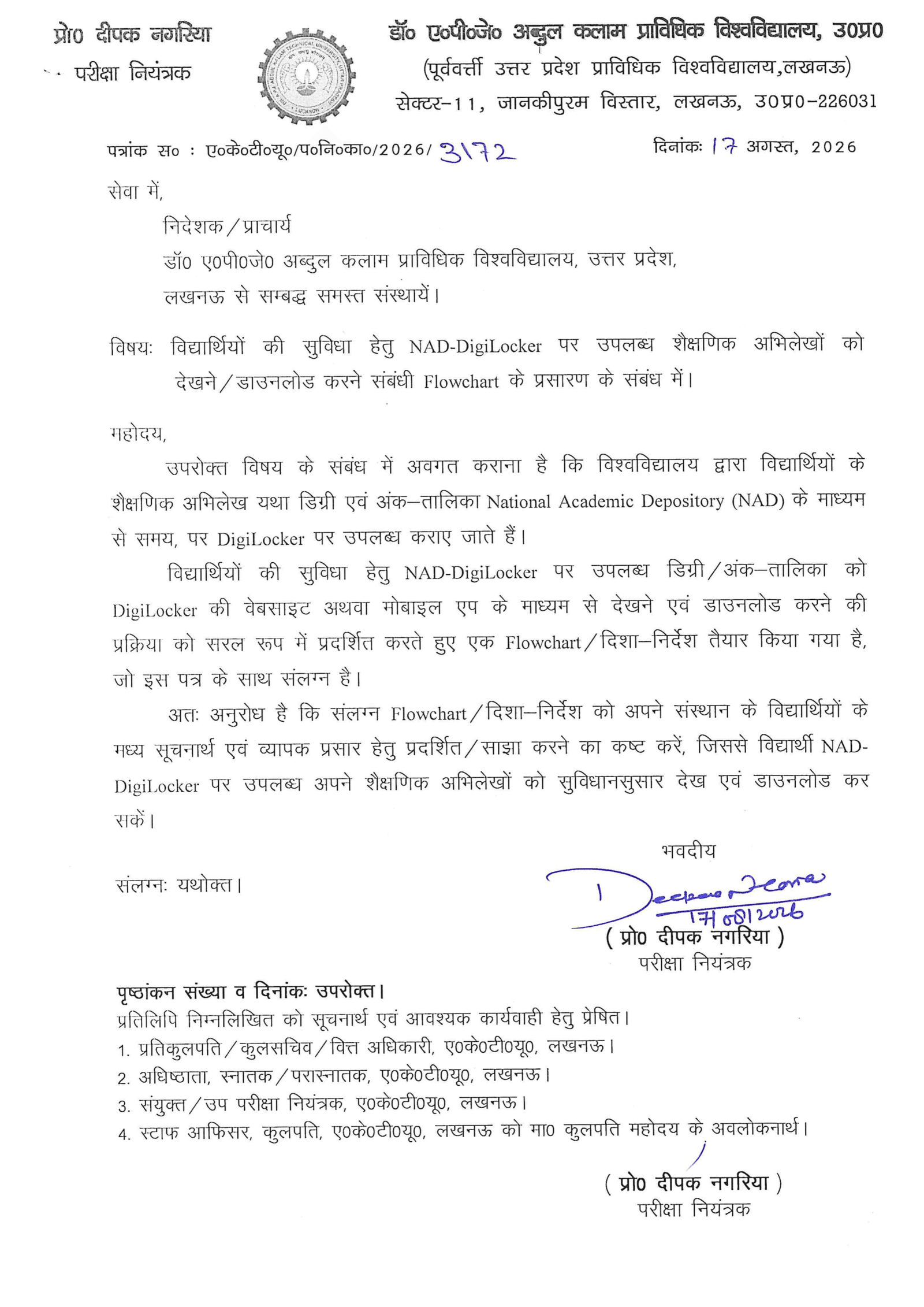
The official communication states that students’ educational records, including degrees and marksheets, are made available on DigiLocker through the National Academic Depository. It also asks educational institutions to display and circulate the instructions so students can easily access their digital academic records.
What Is NAD-DigiLocker?
DigiLocker provides a digital platform for accessing documents that have been issued to a user’s account.
For academic records, the National Academic Depository (NAD) works with DigiLocker to make records provided by universities, boards, and educational institutions available digitally.
The official infographic explains that academic documents available through DigiLocker can be digitally signed and verified online.
One important point is that DigiLocker does not create your university marksheet or degree. The concerned institution must first provide the academic record through the supported system.
Which Academic Documents Can You Get on DigiLocker?
The documents available to you depend on the records provided by your university, board, or institution.
The official flowcharts include examples such as:
- Marksheet
- Degree
- Diploma
- Certificate
- Other academic records
If your institution has not provided a particular document, it may not appear in DigiLocker.
How to Download Your Marksheet or Degree from DigiLocker
The DigiLocker website provides a step-by-step process for finding your academic record and downloading the available document.
DigiLocker Website Download Process
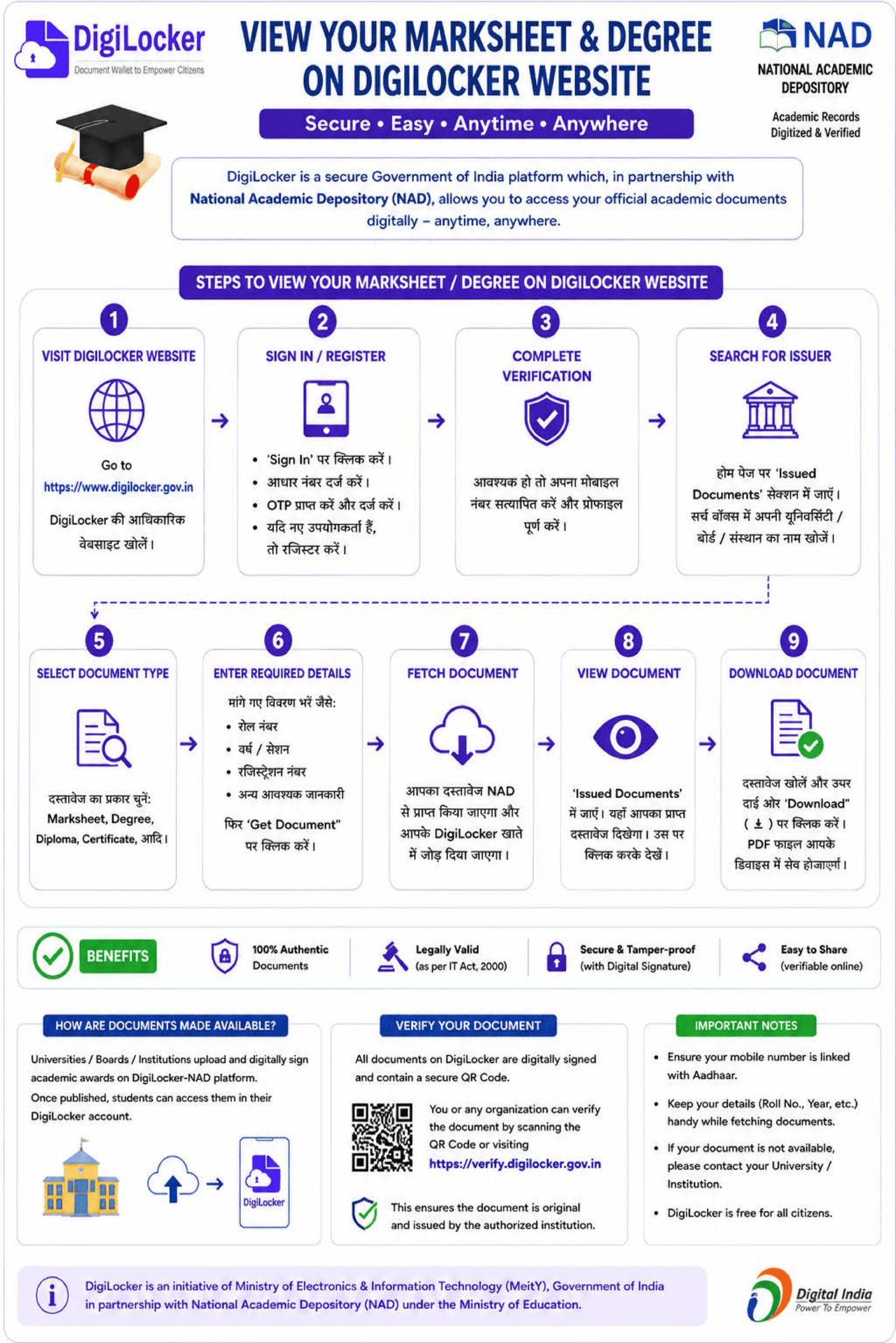
The official flowchart covers the process from signing in to DigiLocker to searching for the issuer, selecting the document, entering academic details, viewing the record, and downloading it.
Step 1: Open the DigiLocker Website
Visit the DigiLocker website and sign in to your account.
The official flowchart begins with visiting the DigiLocker website.
Step 2: Sign In or Register
If you already have a DigiLocker account, sign in.
If you are using DigiLocker for the first time, complete the registration process.
The provided instructions include mobile number and OTP verification as part of the account access process.
Step 3: Complete the Required Verification
After signing in, complete the verification required for your account.
Make sure your account information is correct before searching for your academic record.
Step 4: Find Your University or Board
Go to the section for finding issued academic documents and search for the institution that issued your record.
Depending on your document, the issuer could be:
- University
- Board
- Education Department
- Other authorized institution
Select the correct issuer.
Step 5: Choose Your Document
Select the type of academic record you want to obtain.
For example:
- Marksheet
- Degree
- Diploma
- Certificate
The options shown to you depend on the documents provided by your issuer.
Step 6: Enter Your Academic Details
DigiLocker may ask for information required to identify your academic record.
The official flowchart includes details such as:
- Roll Number
- Year
- Session
- Registration Number
- Other required information
Enter the details carefully and select Get Document.
Step 7: Get Your Document
If the record is available, DigiLocker will fetch it and make it available in your account.
The document will appear in the Issued Documents section.
Step 8: View Your Marksheet or Degree
Open the document from Issued Documents.
Check the details shown on your academic record before saving or sharing it.
Step 9: Download the PDF
Use the Download option to save the available document.
The official flowchart shows the document being downloaded as a PDF file.
How to Download a Marksheet or Degree from the DigiLocker App
You can also access your academic documents through the DigiLocker mobile app.
The mobile process is slightly different in terms of navigation, but the basic steps remain similar.
DigiLocker App Download Process
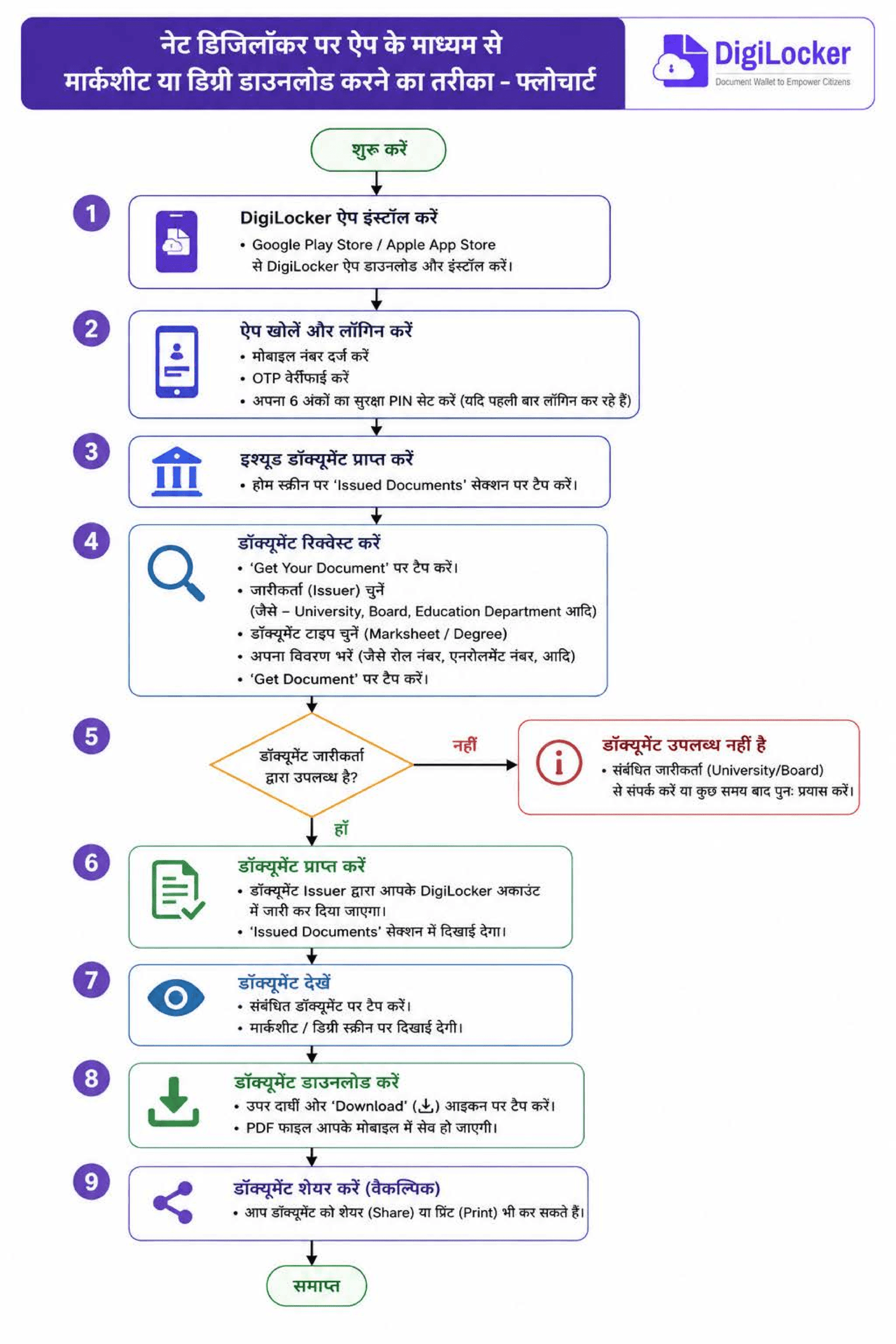
The third page of the attached document shows the complete mobile workflow, including app installation, login, document search, document availability, viewing, downloading, and sharing.
Step 1: Install the DigiLocker App
Install the DigiLocker mobile app from the relevant app store.
Step 2: Log In
Open the app and enter your mobile number.
Complete OTP verification.
The flowchart also shows the option to enter a security PIN if one has already been set.
Step 3: Open Issued Documents
After logging in, open the Issued Documents section.
This is where documents issued to your DigiLocker account can be accessed.
Step 4: Select Get Your Document
Select Get Your Document.
Search for your university, board, education department, or other relevant issuer.
Then select the document you want to obtain.
Step 5: Enter the Required Information
Enter the details requested by the issuer.
These may include your roll number, enrollment number, registration number, year, session, or other academic information.
After entering the details, select Get Document.
Step 6: Check Whether the Document Is Available
If the record is available, DigiLocker will fetch it into your account.
If the document is not available, the official flowchart directs students to contact the concerned issuer, such as their university or board.
Step 7: View the Document
Once the document has been issued, open it from the Issued Documents section.
Review the information shown on your marksheet, degree, or other academic record.
Step 8: Download the Document
Tap the Download option to save the document.
The official mobile flowchart shows the document being downloaded as a PDF.
Step 9: Share the Document
The final stage of the mobile flowchart also includes an option to share the document.
The document can also be printed when required.
What If Your Marksheet or Degree Is Not Showing?
This is one of the most common issues students may face when searching for an academic record.
If your document is not available, first check whether you have selected the correct issuer and entered the correct academic details.
Check:
- University or board name
- Document type
- Roll number
- Registration number
- Enrollment number, where applicable
- Academic year
- Session
If the document still does not appear, contact the concerned university, board, or educational institution.
The official mobile flowchart specifically directs students to contact the concerned issuer when the requested document is unavailable.
How Are Academic Records Added to DigiLocker?
Academic records are provided by universities, boards, and educational institutions.
The official infographic explains that institutions upload academic records to DigiLocker through NAD. Once the records are available, students can access them through their DigiLocker accounts.
This is why one student’s marksheet may be available while another student’s record is not yet visible. The availability depends on the concerned institution and the records it has provided.
Can DigiLocker Academic Documents Be Verified?
Yes. The official infographic explains that DigiLocker academic documents can be verified digitally.
The document can be verified using its QR code or through the DigiLocker verification facility.
The infographic also describes the documents as digitally signed, providing a way to verify the record against the issuing institution.
Why Students Should Keep Their DigiLocker Documents Ready
Digital academic records can be useful when you need to provide your educational information quickly.
Depending on the requirement, an available DigiLocker document may help when you need to:
- Submit an academic record
- Provide a marksheet
- Provide a degree record
- Share an academic document
- Verify an educational record
- Keep a digital copy for your records
The provided flowchart also includes sharing and printing options for accessed documents.
also read : https://notesgallery.com/ai-prompt-to-humanize-ai-writing/
Important Things to Remember
Before trying to fetch your document, keep your academic information available.
- Select the correct issuer.
- Choose the correct document type.
- Enter your academic details accurately.
- Keep your roll number available.
- Keep your registration or enrollment number available.
- Check the academic year and session.
- Look in Issued Documents after fetching the record.
- If the record is unavailable, contact the concerned institution.
- Use the available verification facility when document verification is required.
DigiLocker Marksheet and Degree FAQs
Can I download my marksheet from DigiLocker?
Yes, if your university, board, or educational institution has made the academic record available through the supported NAD-DigiLocker system.
Can I download my degree from DigiLocker?
You can access your degree through DigiLocker if the concerned institution has provided the degree record through the supported system.
What information is needed to fetch a marksheet?
The exact requirements depend on the issuer. The official flowchart includes information such as roll number, year, session, and registration number.
Why can’t I find my marksheet on DigiLocker?
Your institution may not have made the record available yet, or the details entered during the search may not match the issuer’s records.
Check your details and issuer selection. If the document is still unavailable, contact the concerned university or board.
Can DigiLocker documents be verified online?
The official infographic explains that available academic documents can be verified using a QR code or DigiLocker’s verification facility.
Can I download my marksheet using the DigiLocker app?
Yes. The official mobile flowchart shows the process of logging in, finding the issuer, entering the required information, fetching the document, viewing it, downloading it, and sharing it.
Final Word
For students, DigiLocker offers a convenient way to access academic records that have been provided through the National Academic Depository.
The process is straightforward. Sign in through the DigiLocker website or app, find your university or board, select the required document, enter the requested details, and fetch the record. If the document is available, you can view and download it through the options provided by DigiLocker.
If your marksheet or degree is not available, check your details first. If the problem continues, contact the concerned institution because the academic record must be provided by the relevant issuer.